Review Automation
How to Automate Google Review Requests
August 2, 20268 min read
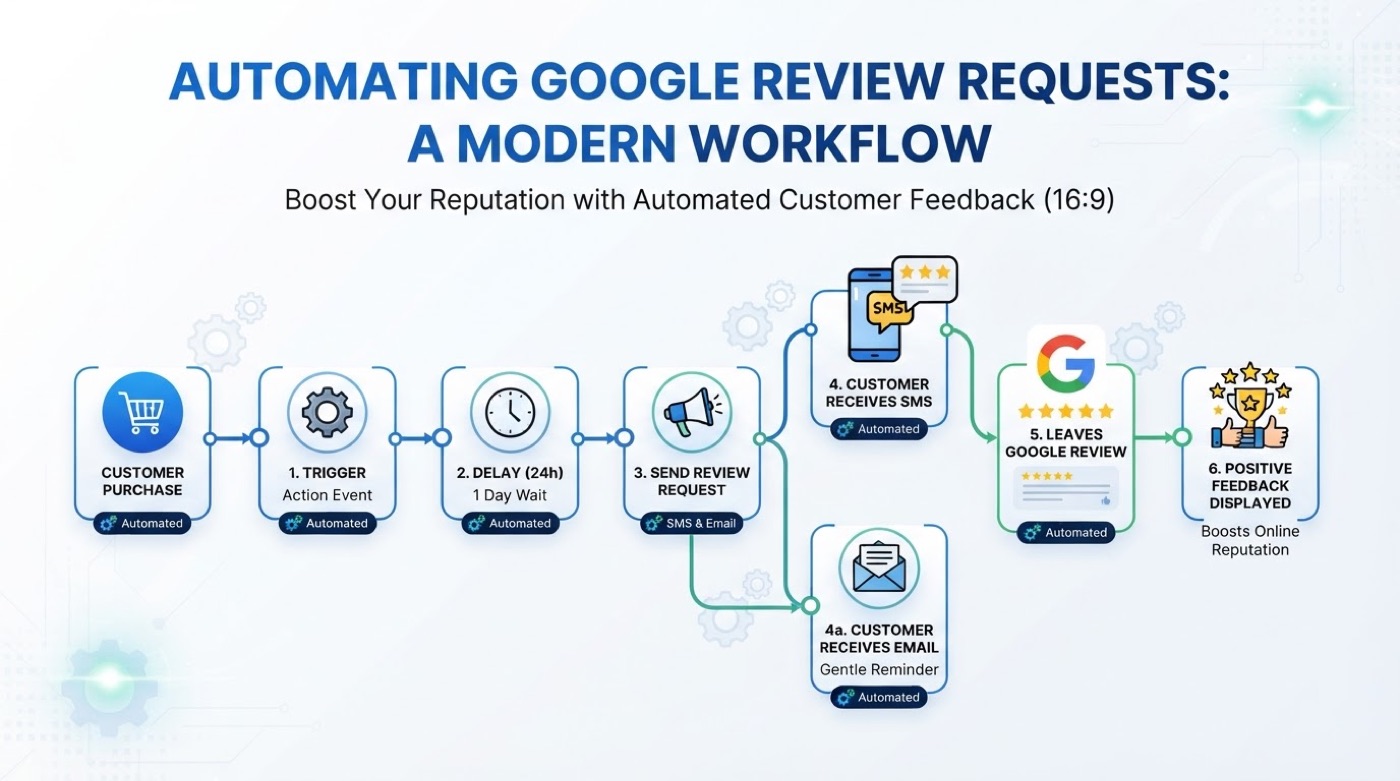
Learn how to set up automated Google review requests that trigger after every completed job, follow up with non-responders, and grow your review profile on autopilot.
Manually asking every customer for a review works — until it doesn’t. You get busy, a job runs late, you forget to send the text, and the opportunity passes. Meanwhile, your competitors with automated systems are collecting reviews from every single job.
Automating your review requests doesn’t mean sending spam. It means building a system where every completed job triggers a natural, well-timed review request — and every non-responder gets a gentle follow-up — without you having to remember to do it manually.
A good review automation system handles three things:
The result is that every customer gets asked, every time, at the right moment — without you or your team having to think about it.
The automation needs to know when a job is completed. This usually means connecting to your existing CRM, job management platform, or scheduling system. When a job status changes to “completed,” the automation knows it’s time to send a request.
Common integrations include job management platforms like Jobber and Housecall PRO, as well as CRM systems through Zapier.
Your automated message should be personal and concise. It should include:
For example: “Hi Mark! Thanks for choosing Apex Roofing today. If you have a minute, a quick Google review would really help us: [Link]”
Not every customer will respond to the first request. A good automation system lets you schedule a follow-up reminder — typically 2–3 days after the initial request. The follow-up should be gentle and give the customer an easy out.
For example: “Hi Mark! Just a quick follow-up — if you get a chance this week, a Google review would really help us: [Link] No rush at all!”
You don’t want to ask the same customer for a review every time they interact with your business. A cool-down period (e.g., 30 days) prevents excessive repeat requests to the same customer.
Five Star Harvester is a done-for-you review service: we run your review requests, follow-ups and reply drafts so your team doesn't have to chase reviews.
$297/month · No setup fee · Cancel anytime
One of the biggest opportunities for local businesses is reactivating past customers. If you’ve been in business for a few years, you likely have a list of customers you’ve served but never asked for a review.
An automated system can gradually reach out to eligible past customers with review requests — not all at once, but in controlled batches over time. This turns your existing customer list into a steady source of new reviews.
For more on this strategy, see our guide on getting more Google reviews.
The difference isn’t just convenience — it’s consistency. A manual approach depends on you remembering to ask every time. An automated approach ensures that every customer gets asked, every time.
Over months, that consistency compounds. A business that asks 80% of its customers (because they forget 20% of the time) will always lag behind one that asks 100% — even if the per-customer response rate is the same.
Automation doesn’t change what’s allowed. Your automated requests must still follow Google’s review policies:
A well-designed automation tool handles the delivery and timing. It’s your responsibility to make sure the content of your requests is compliant.
If you’re ready to automate your review requests, the process is straightforward:
Tools like Five Star Harvester handle all of this in one platform — automated requests, follow-ups, past customer reactivation, AI-assisted review responses, and a dashboard to monitor everything.
The goal isn’t to replace the human element of your business. It’s to make sure the operational task of collecting reviews happens consistently, so you can focus on doing great work for your customers.
Yes, as long as your automation follows Google’s review policies. This means requesting reviews only from actual customers, not offering incentives, and not filtering out negative reviews (review gating). Automation simply handles the timing and delivery of your requests — it doesn’t change what you’re allowed to ask for.
The most common trigger is a completed job or service. When a job is marked as complete in your CRM or job management system, the automation sends a review request to that customer. Other triggers can include a completed appointment, a closed invoice, or a manual entry.

A practical, step-by-step guide to generating more authentic Google reviews for your local service business — without resorting to shortcuts that violate Google’s policies.

Practical scripts, timing tips, and follow-up strategies for asking your customers for Google reviews in a way that feels natural and genuine — not pushy.
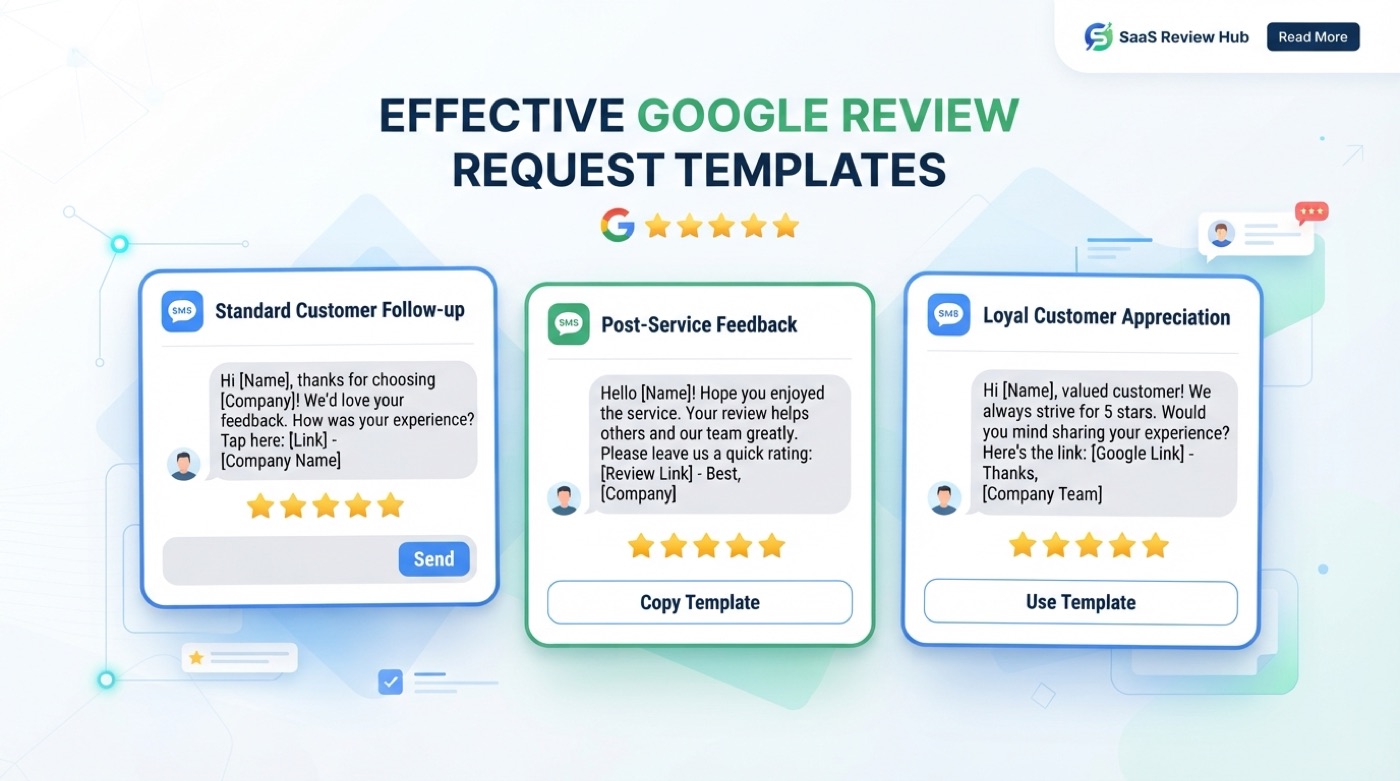
Ready-to-use Google review request templates for SMS, email, and in-person asks. Copy, customize, and start collecting more reviews from your customers.